What it does
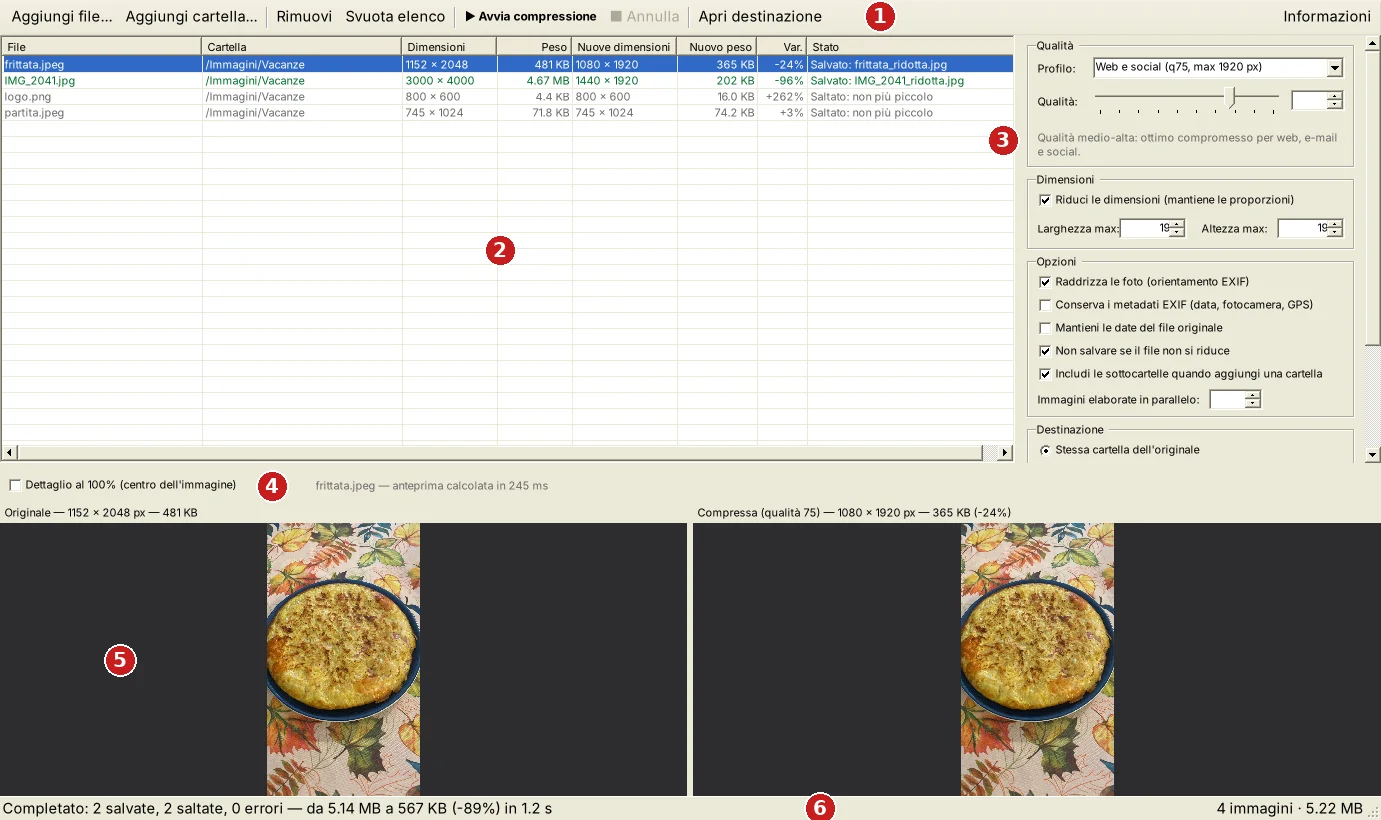
Designed to prepare photos for publishing on the web, sending by email or messaging, or slimming down photo archives. A side-by-side preview shows the original and the result, with file size and dimensions calculated before saving.
On a 12-megapixel photo saved at high quality (4.67 MB) the result dropped to 202 KB, 96% smaller. On photos already compressed by a smartphone, most of the savings come from reducing the dimensions.
- Quality from 1 to 100With ready-made profiles, for example “Web e social” (Web and social): quality 75, maximum 1920 pixels.
- ResizingMaximum width and height, keeping the aspect ratio and never enlarging.
- Files and whole foldersIncluding subfolders, by dragging them into the window.
- Straightened photosAccording to smartphone EXIF orientation; metadata and GPS can be kept or removed.
- Parallel processingCancellable, with a final summary; an error never leaves a half-written file.
- Command lineFor scripts, scheduled tasks and the File Explorer “Send to” menu.
Requirements
| Operating system | Windows 10, Windows 11 or Windows Server 2016 and later |
|---|---|
| Framework | .NET Framework 4.8 |
| Installation | None: a single .exe file, no administrator rights needed |
Installation
- Copy ReduceImageSize.exe to a folder, for example
C:\Tools\ReduceImageSize. - Start it and drag the photos or folders to reduce into the window.
- Choose a profile and check the preview.
- Click Avvia compressione (Start compression): the reduced copies are saved where you specified.
All the details are in the manual, which you can download alongside.