What it does
Its features are deliberately similar to those of FireDaemon Pro. Each managed program becomes a separate Windows service: automatic start, dependencies and the run-as account are handled directly by Windows, and the services also appear in the Services console.
The service registered in Windows is a small helper program, SKHost.exe, which reads the configuration, starts your program, monitors it and restarts it according to the rules you set.
- Automatic restartWith a delay and a retry limit; beyond the limit it can run a program of your choice.
- Account of your choiceLocal System, Local Service, Network Service or a local or domain user, with guided lookup.
- Graceful shutdownCtrl+C, Ctrl+Break or window close, then termination of the whole process tree.
- Scheduled restartsDaily at a set time or at intervals, and when a memory or CPU limit is exceeded.
- Rotating logsProgram output to file and entries in the Windows Event Log.
- IntegritySHA-256 checksums of launched programs and a seal on the settings.
- Dependencies and environmentDependencies between services, environment variables, priority and CPU affinity.
- Import, export and command lineXML configurations and full control from scripts.
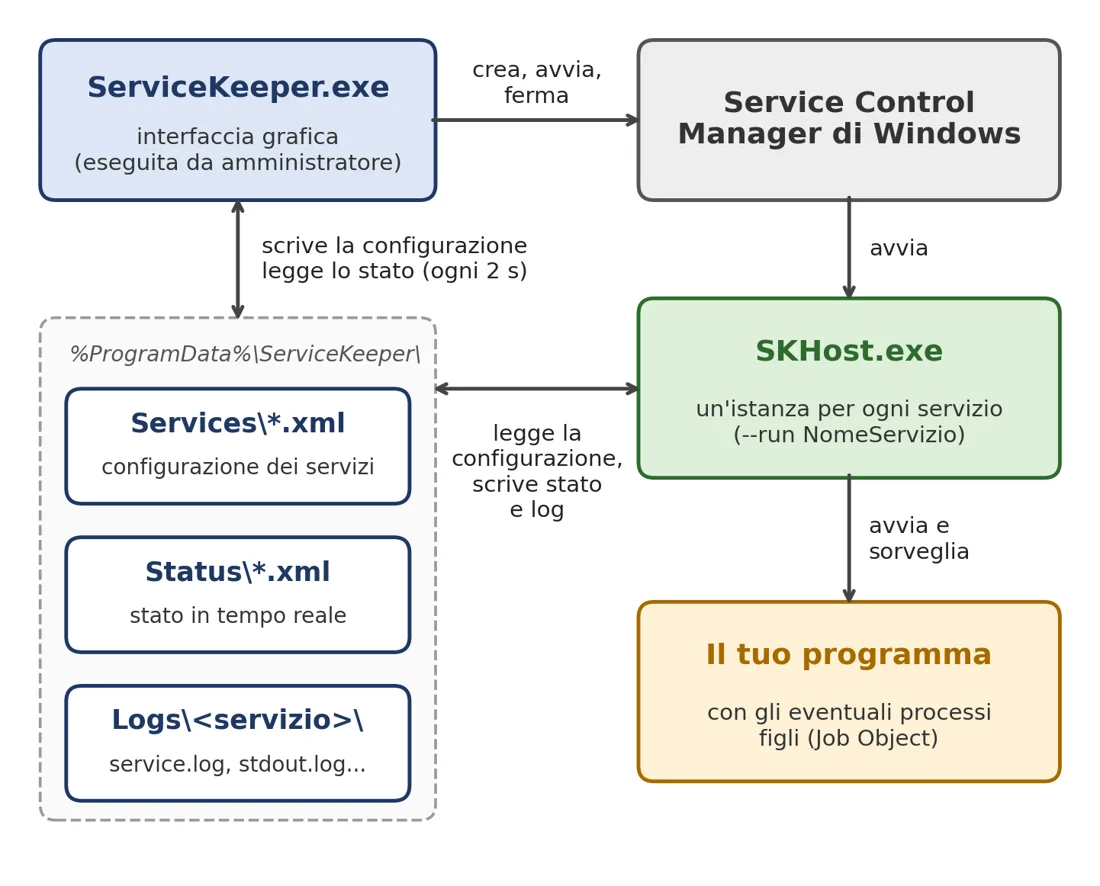
Requirements
| Operating system | Windows with .NET Framework 4.8 |
|---|---|
| Permissions | Administrator, to create and manage services |
| Files | ServiceKeeper.exe, SKHost.exe and ServiceKeeper.Core.dll in the same folder |
| Domain users | Computer joined to the domain and domain controller reachable (local users are always available) |
Installation
- Copy all the files to a permanent folder, for example
C:\Program Files\ServiceKeeper\. - Start ServiceKeeper.exe and confirm the Windows prompt (UAC).
- Create your first service: choose the program, the account and the restart rules.
- Start the service and check its status in the list or in the log viewer.
All the details are in the manual, which you can download alongside.
Good to know
- Services run in Windows session 0: a program with a graphical interface will run, but its window is not visible.
- It is not suitable for programs that launch another process and then exit.
- Do not move the folder after creating services: the path to SKHost.exe is registered in each of them.